

Home > Settings > Workflow > Schedules
Overview
Using the Schedules module, you can:- Create schedules for existing workflows
- Control when and how often a workflow runs
- Manage execution behavior during delays or system downtime
- Activate, deactivate, edit, or delete schedules
- View execution history and logs of scheduled workflows
Add new schedule
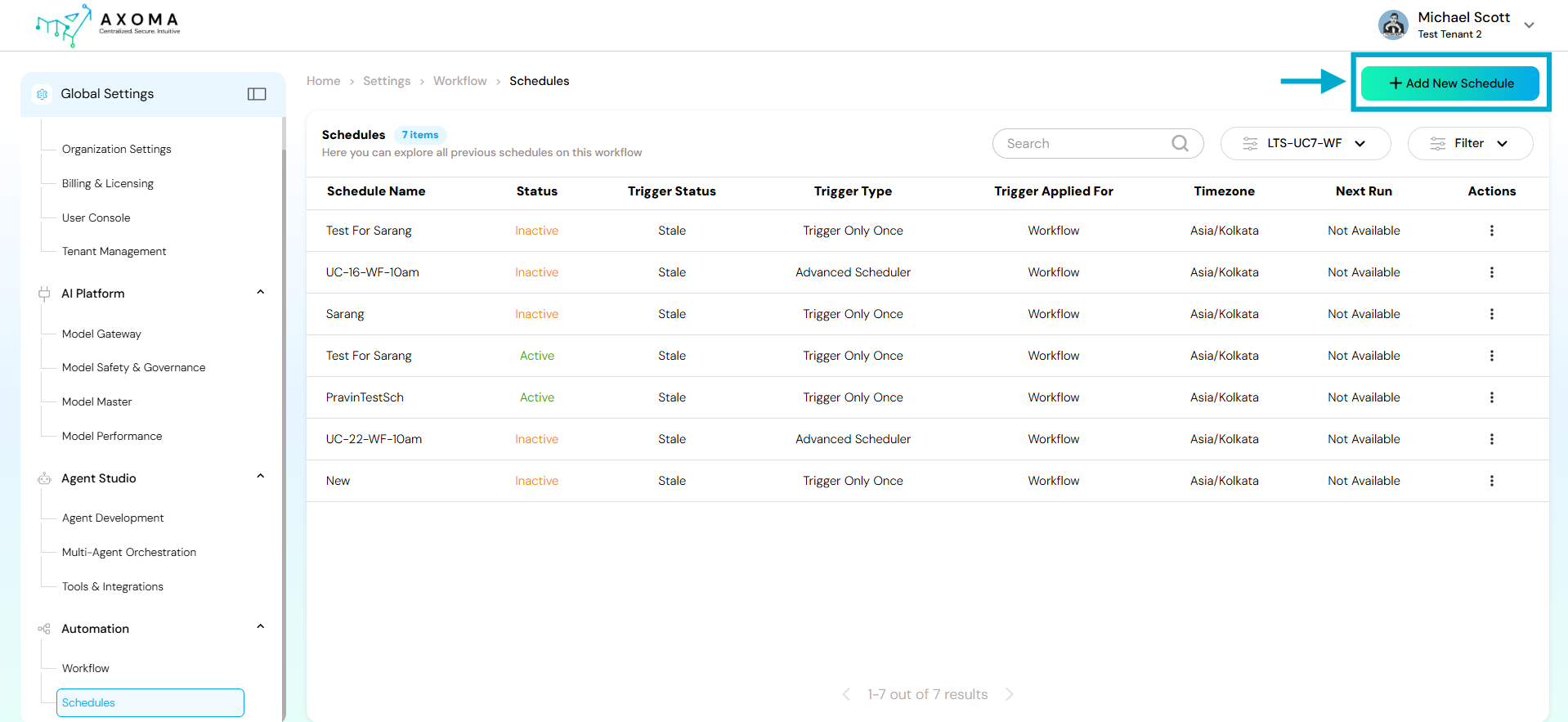
Click on + Add New Schedule to create a new scheduler for an existing workflow.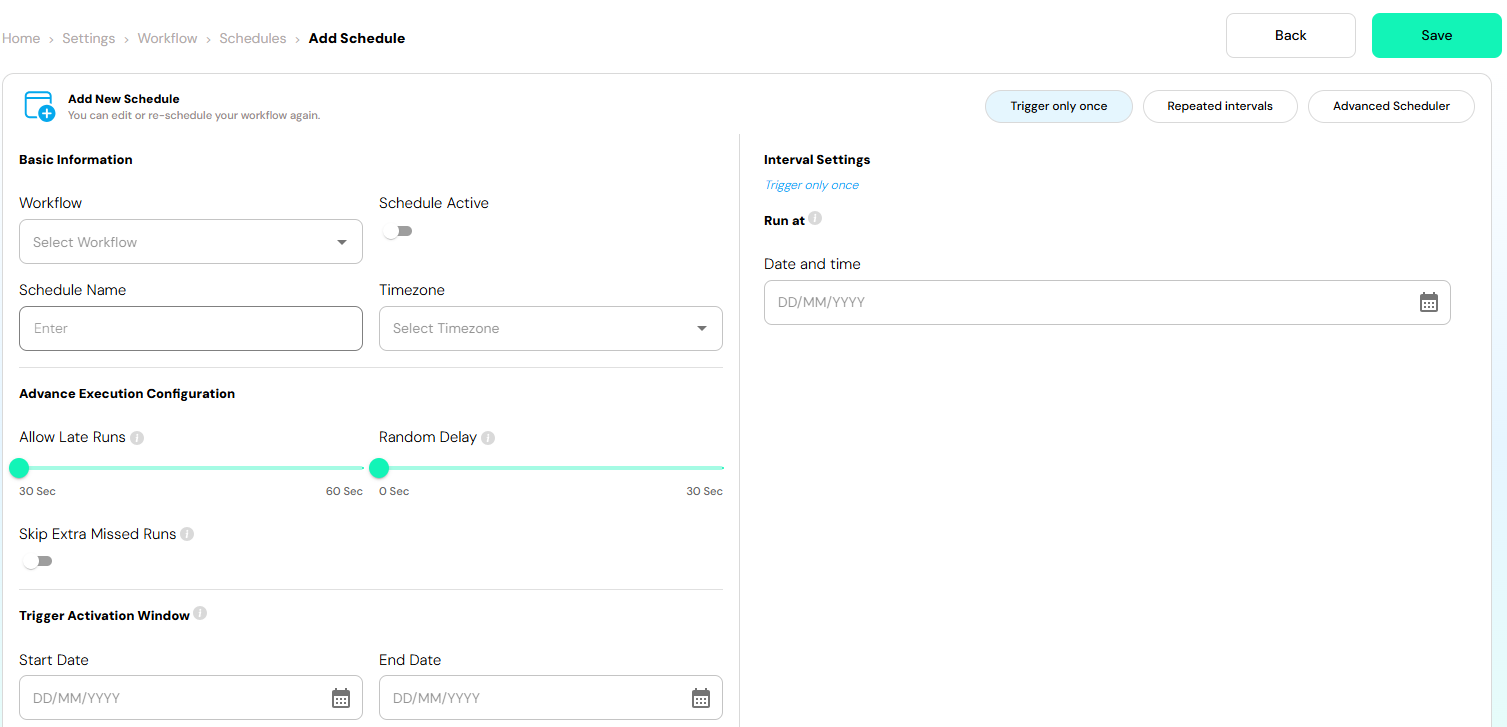
- Schedule Name – Name given to the schedule
- Status – Indicates whether the schedule is Active or Inactive
- Trigger Status – Shows if the trigger is valid or stale
- Trigger Type – Type of scheduler used (Trigger Only Once, Repeated Intervals, Advanced Scheduler)
- Trigger Applied For – Indicates the trigger is applied to a Workflow
- Timezone – Timezone in which the schedule runs
- Next Run – Next scheduled execution time (if applicable)
- Actions – Options to Activate/Deactivate, Edit, Delete, or View Runs
- Workflow - Select an already created workflow from the dropdown
- Schedule Active - Toggle ON to activate the schedule immediately after saving and Toggle OFF to keep the schedule inactive
- Schedule Name - Enter a unique and meaningful name for the schedule
- Timezone - Select the timezone in which the workflow should execute. All trigger times are evaluated based on this timezone
Advance Execution Configuration
These settings control how the scheduler behaves under special conditions.- Allow Late Runs - Defines the maximum delay allowed if the system was offline or busy Example: If set to 60 seconds, the workflow can still run up to 60 seconds late
- Random Delay - Adds a random delay before execution. Helps avoid system load spikes when multiple schedules run simultaneously Example: A random delay of up to 30 seconds will execute the workflow at a random time within that range
- Skip Extra Missed Runs - When enabled, skips multiple missed executions and runs only once. Useful when the system was down for a long period
Trigger Activation Window
Defines the date range during which the scheduler remains active.- Start Date - Date from which the scheduler becomes active
- End Date - Date after which the scheduler automatically stops triggering
Jobs will only trigger within this defined window.
Schedule Types
Axoma provides three scheduling options:Trigger Only Once
- Runs the workflow only one time at the specified date and time
- Interval Settings: Select Date and Time for execution
- One-time data sync.
- Single report generation
Repeated Intervals
Runs the workflow repeatedly at fixed intervals (for example, every few minutes or hours) Use Case Example:- Periodic data monitoring
- Frequent system health checks
Advanced Scheduler (Cron Expression)
Provides full control over scheduling using Cron Expressions Cron Expression Format A cron expression consists of five fields: Minute Hour Day-of-Month Month Day-of-Week Common ExamplesSaving the Schedule
- Click Save after configuring all required fields
- If Schedule Active is enabled, the scheduler becomes active immediately
- The workflow will execute at the configured time or interval
View Runs & Logs
- From the Schedules home screen, select View Runs for a schedule to:
- See how many times the workflow has executed
- View execution timestamps
- Check success or failure status
- Debug workflow behavior using execution logs
Key Notes & Best Practices
- Always verify the selected timezone before saving
- Use random delay when scheduling multiple workflows at the same time
- Prefer cron expressions for advanced and recurring automation
- Use Trigger Activation Window to prevent unintended long-term execution
Available Actions on homepage
Only published workflows are available for scheduling- Activate / Inactivate a schedule
- Edit an existing schedule
- Delete a schedule
- View Runs – View workflow execution logs and run history